User guide
How Cellar Circle works, step by step. You don't need to be good with technology: if you can send a text message, you can use this.
This guide is a first draft and is being checked. The people and wine in the pictures are made up.
What Cellar Circle is
Cellar Circle is a place for a group of friends to share wine. When someone finds a good case, they offer it to the group. Friends ask for the bottles they would like, and everyone pays only what the wine cost, shipping included. Nobody makes a profit. That is the whole idea.
You can also swap bottles you already have for ones you would like to try.
Good to know
- It is private. Your group is called a community. Only its members can see what is in it.
- Cellar Circle never handles money. You pay each other directly, the way you have agreed. The app only keeps track of who owes what, and never asks for your bank details.
- Nobody is forced into anything. You ask for bottles, the person offering says yes, and only once they confirm the offer is it a promise.
Joining, and signing in
There are four steps. You only do them once.
- Get an invitation. A friend who runs a community will send you a link, or an 8-letter code. Or you can start a community of your own.
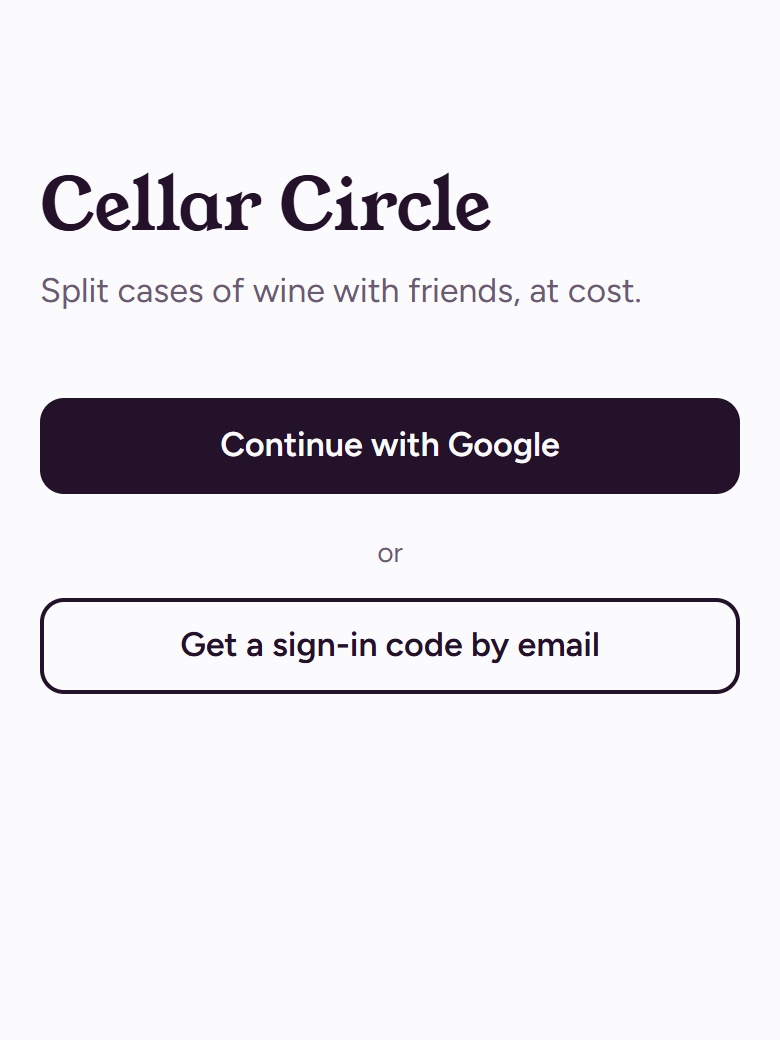
- Sign in. Choose Continue with Google, or Get a sign-in code by email. With the email choice you type your address, we send you a 6-digit code, and you type it in. There is no password to remember.
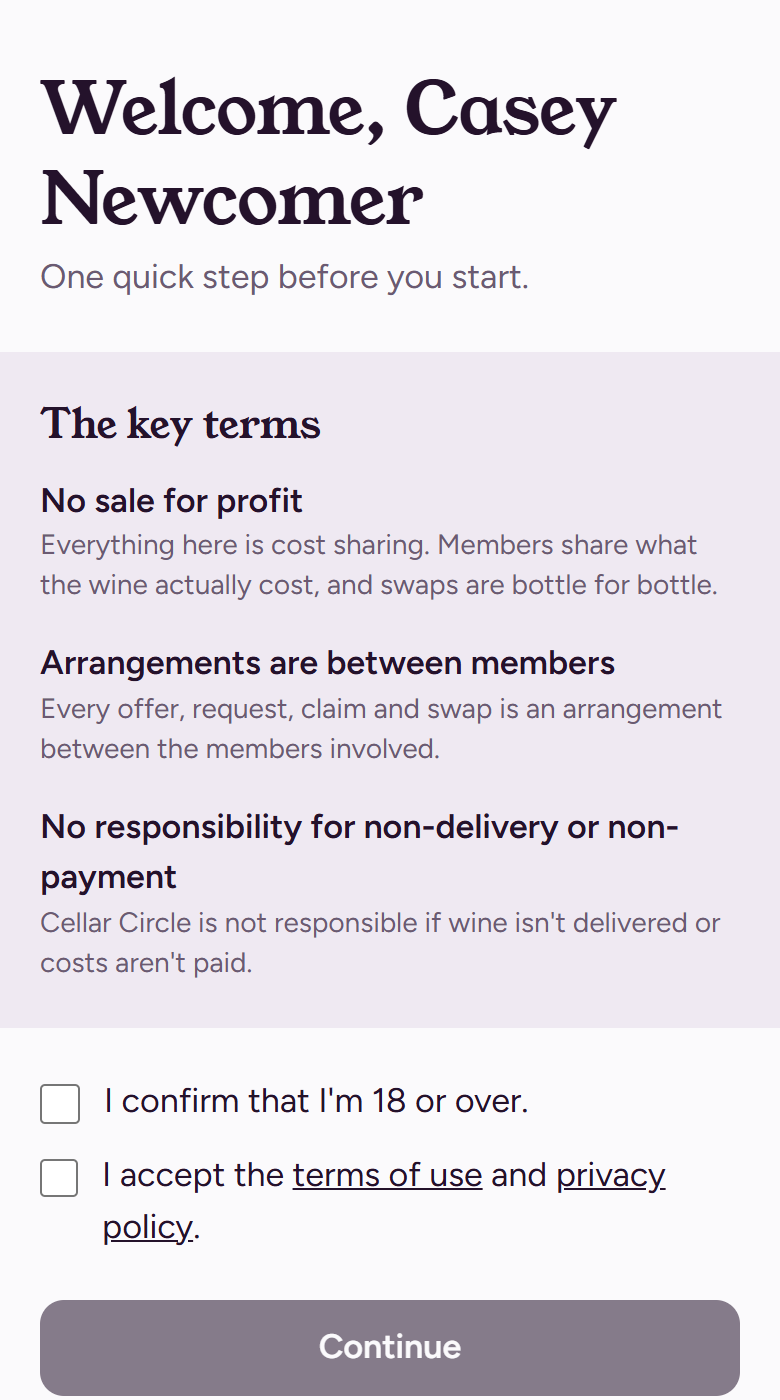
- Say you are 18 or over and accept the terms. You will see this once, the first time.
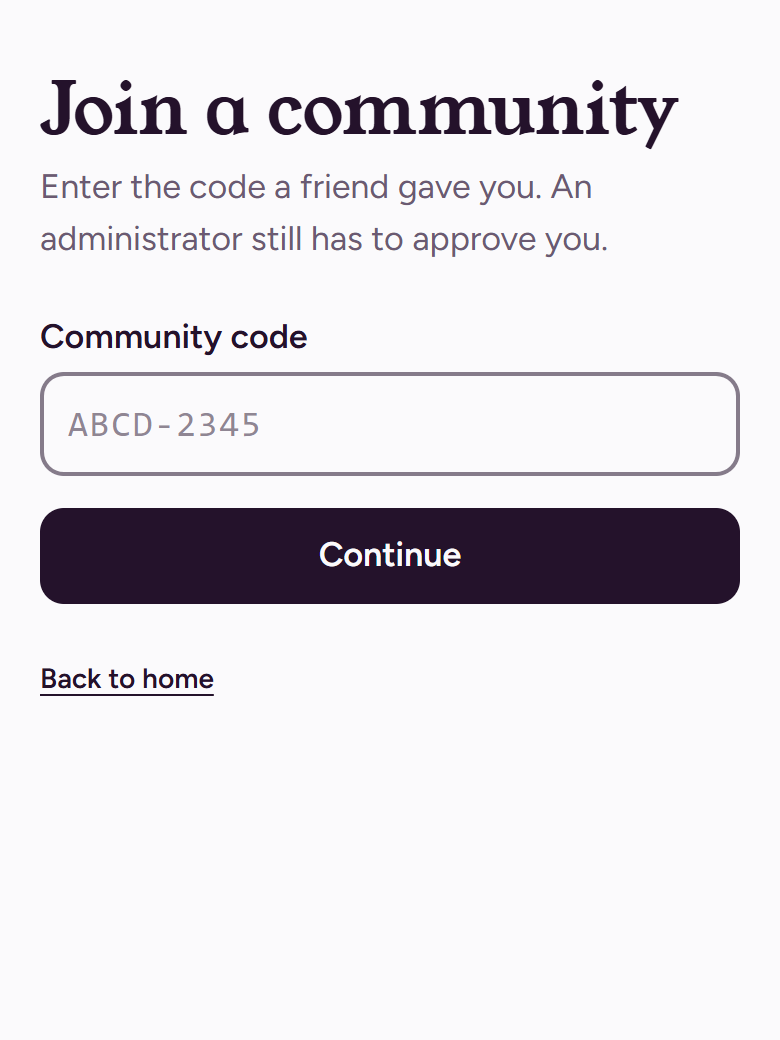
- Ask to join. Tap your friend's link, or choose Join a community with a code on your home screen and type the code. Then tap Ask to join. An administrator of the community lets you in, and you will be told when they have.
If you do not have a link or code yet, ask the friend who told you about Cellar Circle. They can send you one from the community's page.
Add it to your phone
Adding Cellar Circle to your phone's home screen makes it open like any other app, with its own icon. On an iPhone it is also needed before notifications will work.
On an iPhone
- Open Cellar Circle in Safari.
- Tap the Share button (a square with an arrow pointing up).
- Scroll down and tap Add to Home Screen, then Add.
On an Android phone
- Open Cellar Circle in Chrome.
- Tap the three dots at the top right.
- Tap Add to Home screen (or Install app), then confirm.
Your home screen
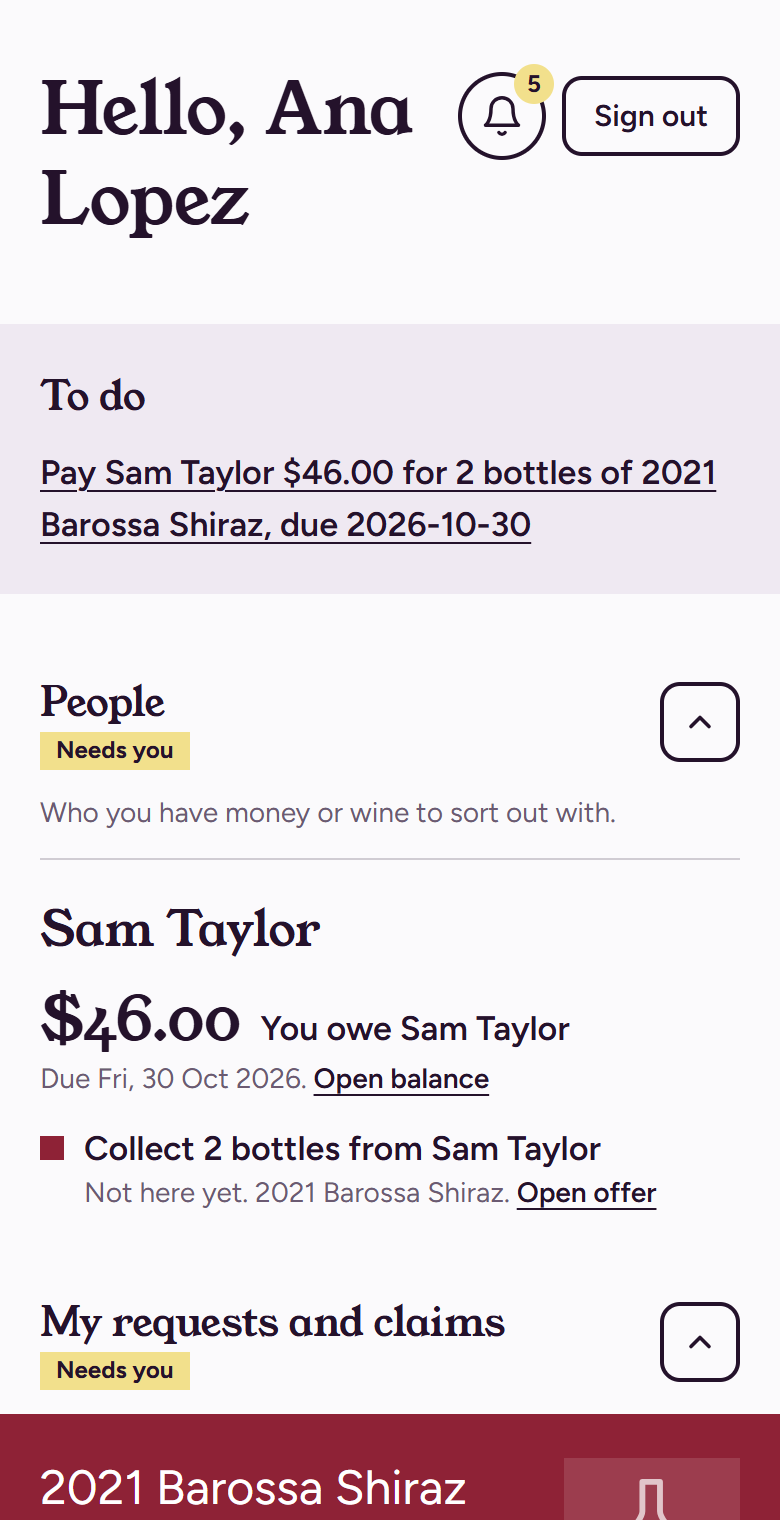
Your home screen is the first thing you see. It shows what needs you and what is going on, with the most important things at the top.
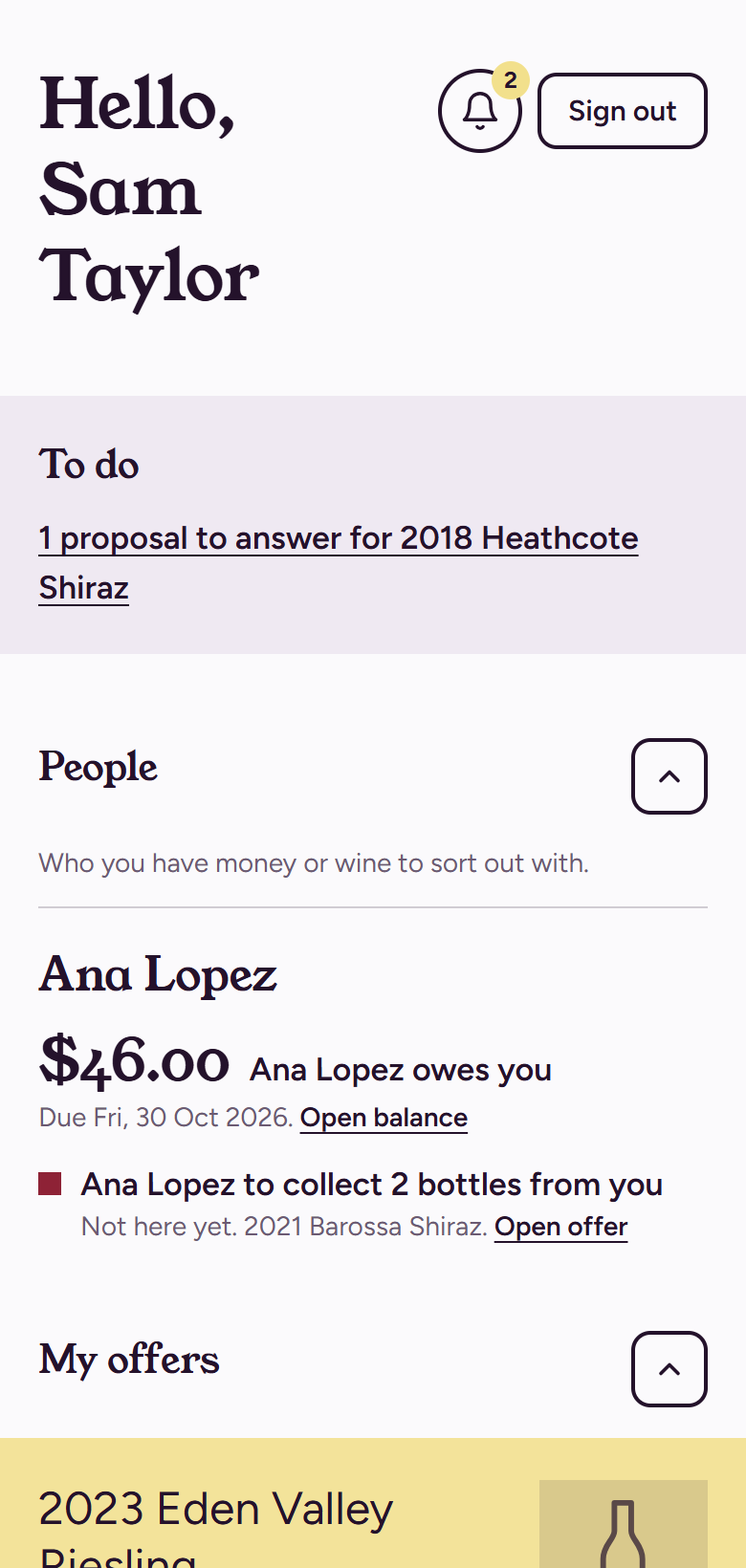
- To do. Things waiting for you: a request to answer, money to pay, wine to collect. If there is nothing, this box is not shown.
- People. One entry for each friend you have something to sort out with: who owes you money, whose wine you are collecting, and who is collecting wine from you.
- Your offers and requests, and open offers and swaps from your communities, below.
Each section has an arrow beside its heading. Tap it to fold the section away, and tap again to open it. A section with something for you to do opens itself and says Needs you, so you will never miss something by folding it away.
If you are in more than one community, buttons at the top let you look at one community at a time.
Sharing a case
If you would like some bottles
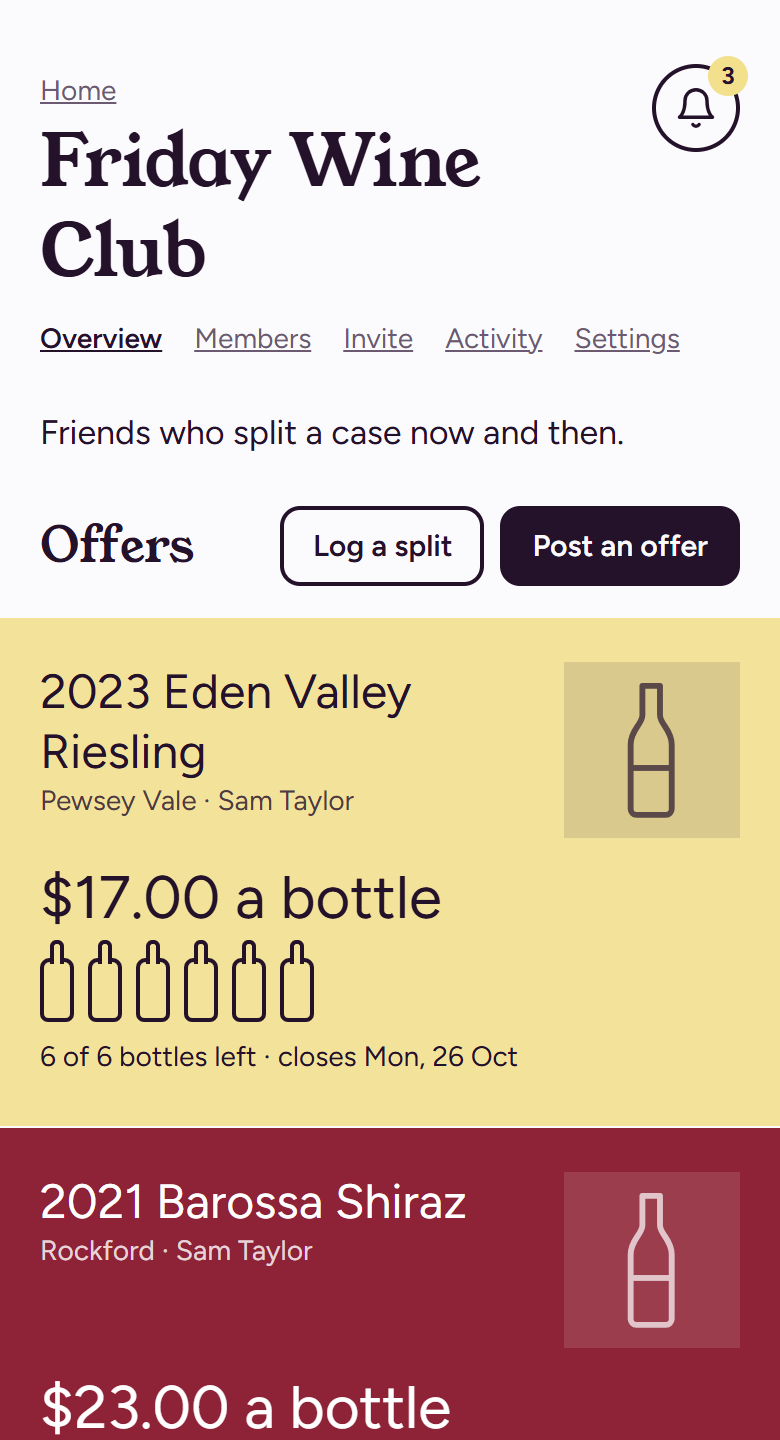
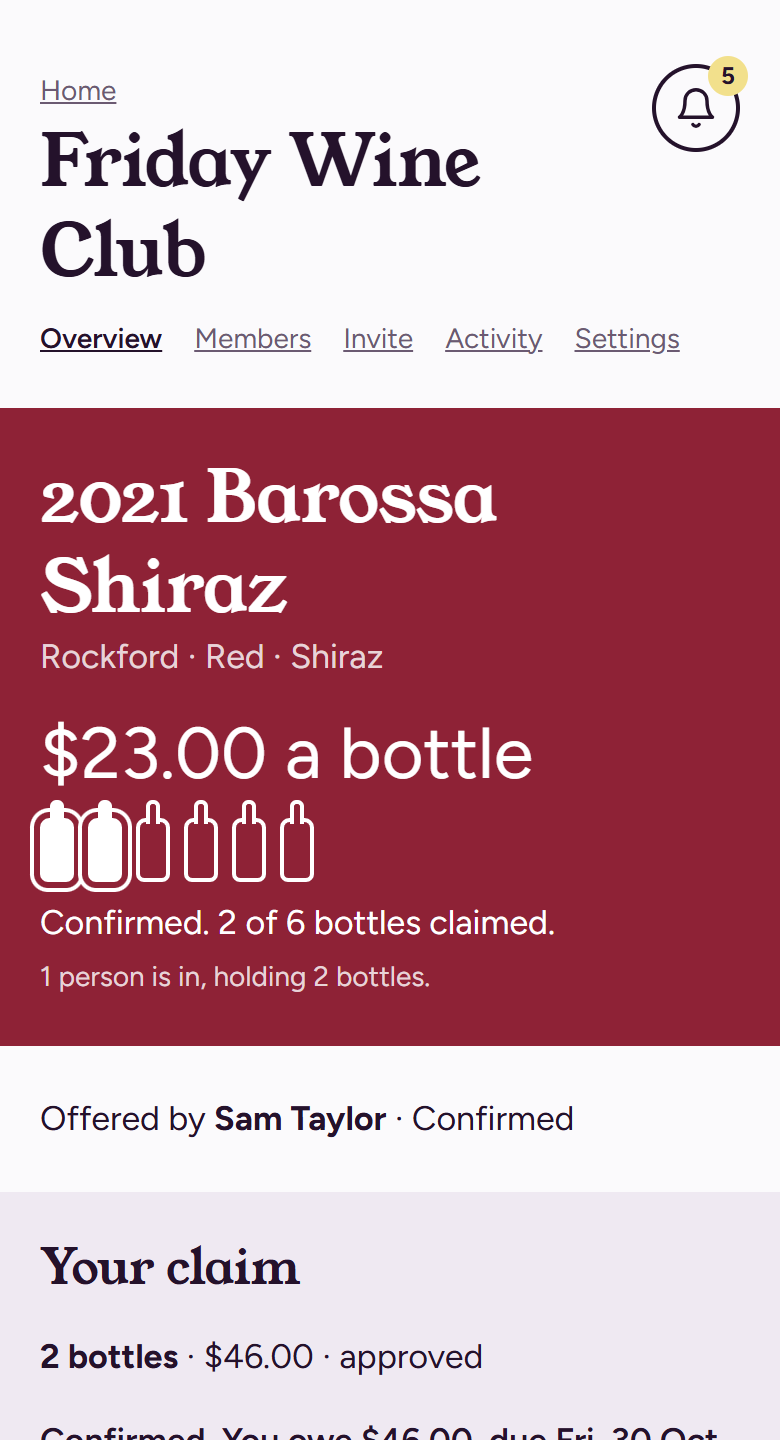
- Open your community. Under Offers you will see what your friends have posted, each with the price of one bottle.
- Tap an offer to see the details, and how many bottles are left.
- Choose how many bottles you would like and tap Request bottles. They are held for you straight away.
- The person offering says yes, or gives you fewer bottles if there are not enough, and you are told.
- Until they confirm the offer you can change your mind: change the number or withdraw your request. After they confirm, it is a promise, and you pay for what you asked for. If something has changed for you, use Ask to be released on the offer and explain why.
Some offers say the wine is already ordered or already here. There is nothing to wait for on those: you tick that your request is a promise once approved, and when the person offering says yes you are told what you owe and can pay straight away.
If you are offering a case
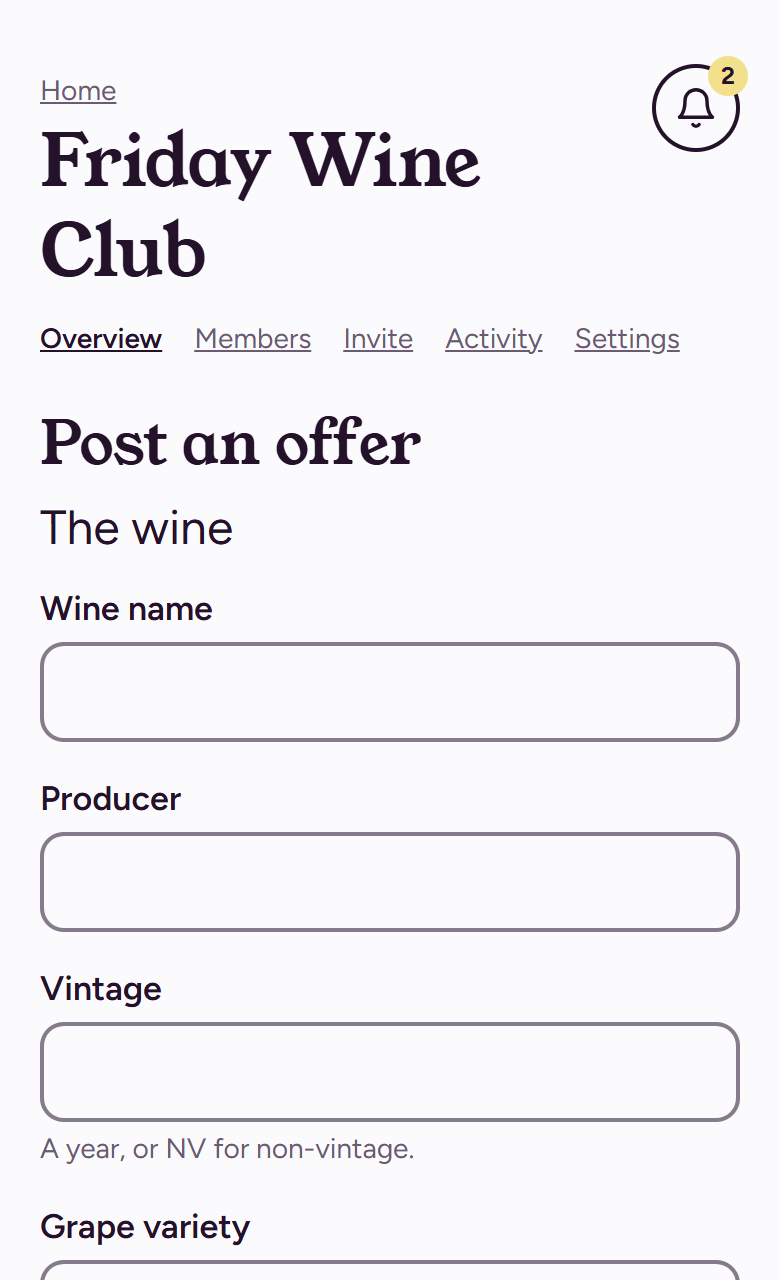
- In your community, tap Post an offer.
- Tell us about the wine, where you bought it, how many bottles you bought and how many you are offering, and what the wine and shipping cost.
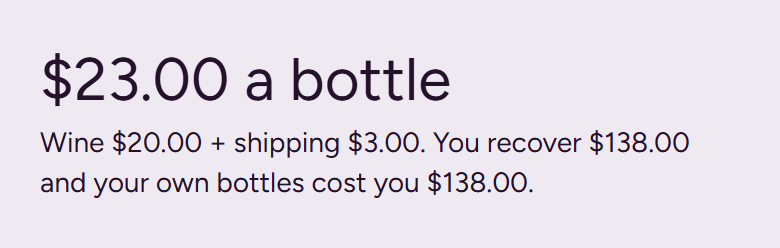
- You will see the price for each bottle, worked out for you. It never includes a profit: you only recover what you paid for the bottles you are offering.
- Under Where is the wine? leave Not ordered yet if you are asking friends before you buy. Choose the last day people can ask for bottles. Friends are told straight away.
- Look at the requests. Say yes to each, give someone fewer bottles, or say no. When you are ready to go ahead, tap Confirm the offer. Everyone is told what they owe and by when.
- Buy the wine, then keep the offer up to date (ordered, on its way, arrived), so everyone knows where it is.
If you have already bought the wine
Sometimes the wine is already ordered, or already at your door, before you offer it round. When you post the offer, choose Already ordered or Already here under Where is the wine?. The price is fixed, there is no closing date, and friends can ask for bottles until they are gone or you close it. Each request still waits for your yes, and as soon as you say yes the person is told what they owe (due 7 days later) and can pay straight away. Nothing needs confirming, so the offer never closes to anyone else while bottles are left.
Already posted an offer that is still waiting for confirmation? Tap Edit, choose Already ordered or Already here and save. First say yes or no to any requests that are waiting. Everyone you had already said yes to is told what they owe, and the bottles nobody has asked for yet open up for requests.
If you have a lot of wines to post
Instead of typing each one, tap Upload a list beside Post an offer. Download the spreadsheet template, fill in a row for each wine (up to 100), save it as a CSV file and upload it. You will see every wine with its price a bottle, can fix anything that is missing, and nothing is posted until you say so. If you already use CellarTracker, its cellar export works as a starting point.
Collecting your wine
When the person offering tells everyone the wine has arrived, it is time to collect.
- They may offer some times and a place to collect from. If so, pick a time that suits you. You will be reminded the day before.
- Otherwise, arrange it with them by message or phone, the way friends do.
- When you have your bottles, mark them as collected on the offer. When everyone has collected, the offer is complete.
- If a friend picks up your bottles for you, tell the person offering who collected them.
If you can only take some of your bottles
Sometimes there is not room to take everything at once. You can collect your bottles in more than one go.
- On the offer, type how many bottles you took this time in the How many did you collect? box, then tap I've collected my bottles. Leave the box empty if you took them all.
- The offer now says Part collected, for example 2 of 4, and lists each time you collected. The person offering is told how many are still to come, and the bottles waiting still show on your home screen.
- When you collect more, tap I've collected more of my bottles (with one bottle left there is no number to type). When the last one is collected, it changes to Collected.
- If you tapped by mistake, tap Undo the last one within a day. It takes back only the latest time, and the earlier ones stay.
You still pay for everything you asked for, whether or not you have collected it all. Collecting in parts only changes what is marked as collected.
If you are handing the wine over
On the offer, the Collection list shows each person and whether they have collected. Tick the people who have and tap Mark the ticked ones collected. If someone took only some of their bottles, type how many in the How many box on their line before you tick them: the rest stay waiting, and you can add to it next time. The offer completes by itself when everyone has collected every bottle. If you close it yourself first, you are shown how many bottles are still uncollected for each person, and they stay that way on record.
If a friend can no longer take the bottles they have not collected, tap Release their claim on their line in the list of requests. Only the bottles not yet collected are released: they keep the ones they took, what they owe goes down to match, and anything they had already paid beyond that is shown as a refund due.
Paying, and your payment reference
Once an offer is confirmed, you can see what you owe, who to pay and by when. By default that is 7 days after the offer is confirmed. If the wine was already ordered or already here when it was posted, it is 7 days after the person offering says yes to your request.
- Pay the person offering directly, the way you have agreed: a bank transfer, for example. Cellar Circle does not take payments and never shows bank details.
- Use your payment reference. It looks like WINEK4M7. Type it into the reference or description box of your transfer, so the person you are paying can tell straight away that the money is from you and which offer it is for. Tap Copy the reference to copy it.
- After you have paid, tap I've paid. The person offering checks their account and taps Mark paid.
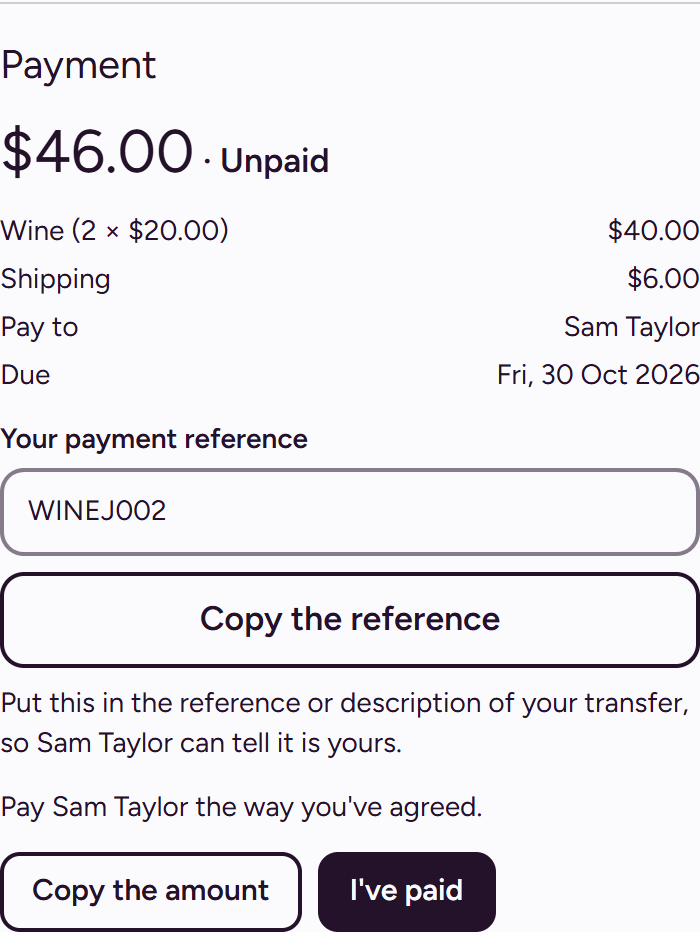
Each person gets their own reference for each offer, so if you and a friend both take bottles from the same case, your references are different.
If you are the one being paid
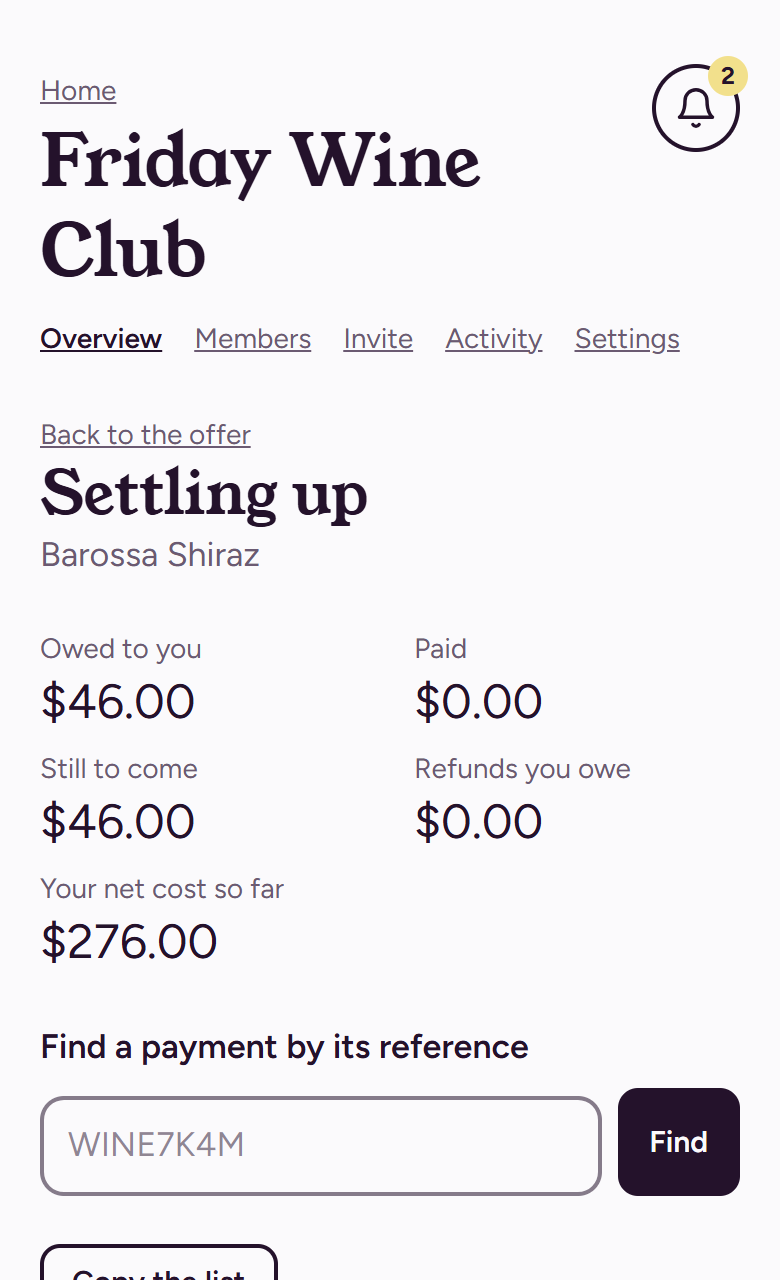
Open the offer and choose Settling up. You will see everyone who owes you, their payment reference, and whether they have paid. When money arrives, look for its reference on your bank statement: type it in the search box to find who it is from. If you are owed a lot by one friend over several offers, you can settle it in one go from Balances.
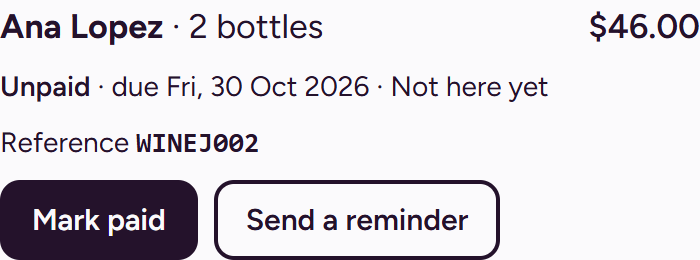
If an offer is cancelled after someone has paid, it shows as Refund due until the money has been paid back.
Swapping bottles
Swapping is bottle for bottle. No money changes hands.
- In your community, under Swaps, tap List bottles to swap. Say what the wine is, how many bottles, and what you would like in return.
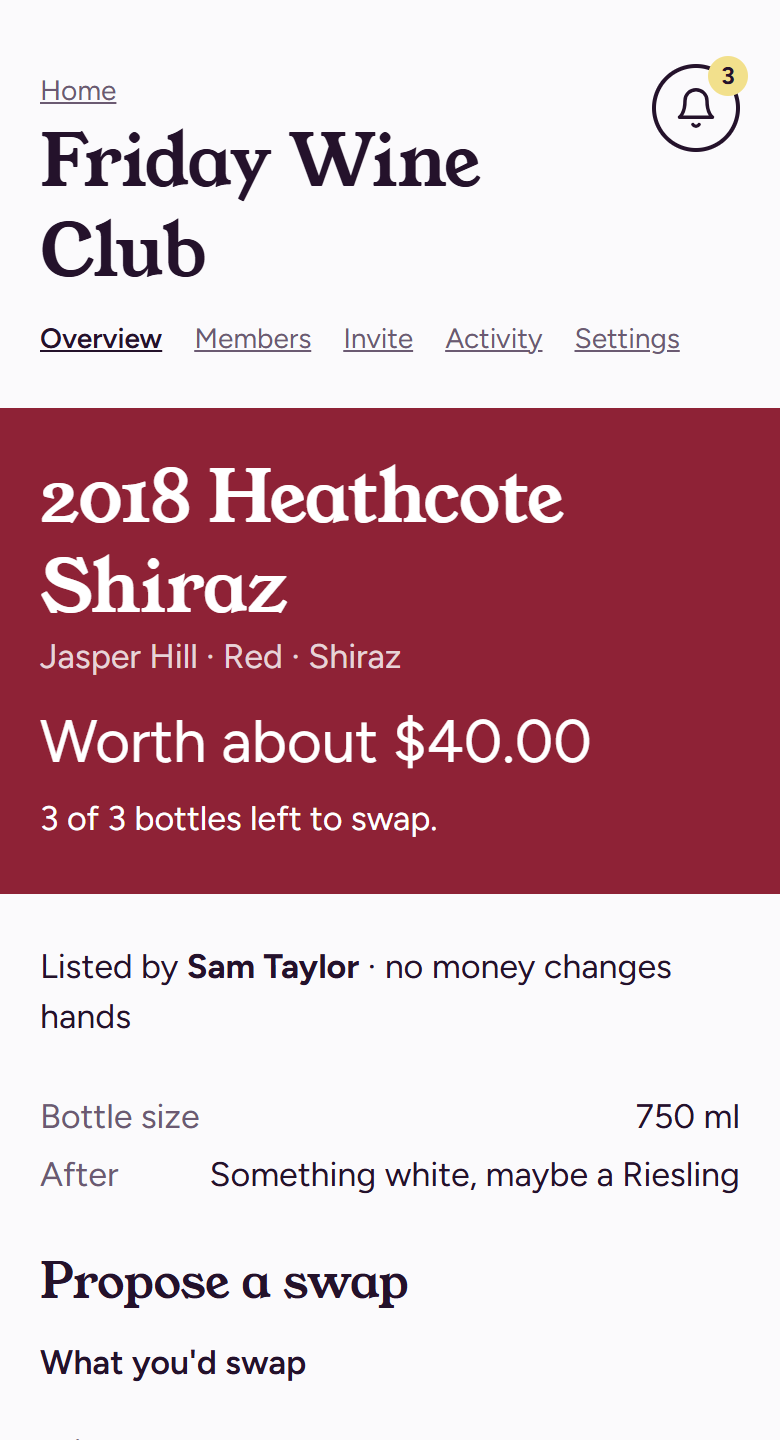
- A friend who fancies it taps Propose a swap and offers a bottle of their own.
- Only you and that friend can see their offer. You can say yes to the one you like, or no, and you are both told.
- Arrange the handover between you. When each of you has the other's bottle, you both tap to say so, and the swap is complete.
Notifications
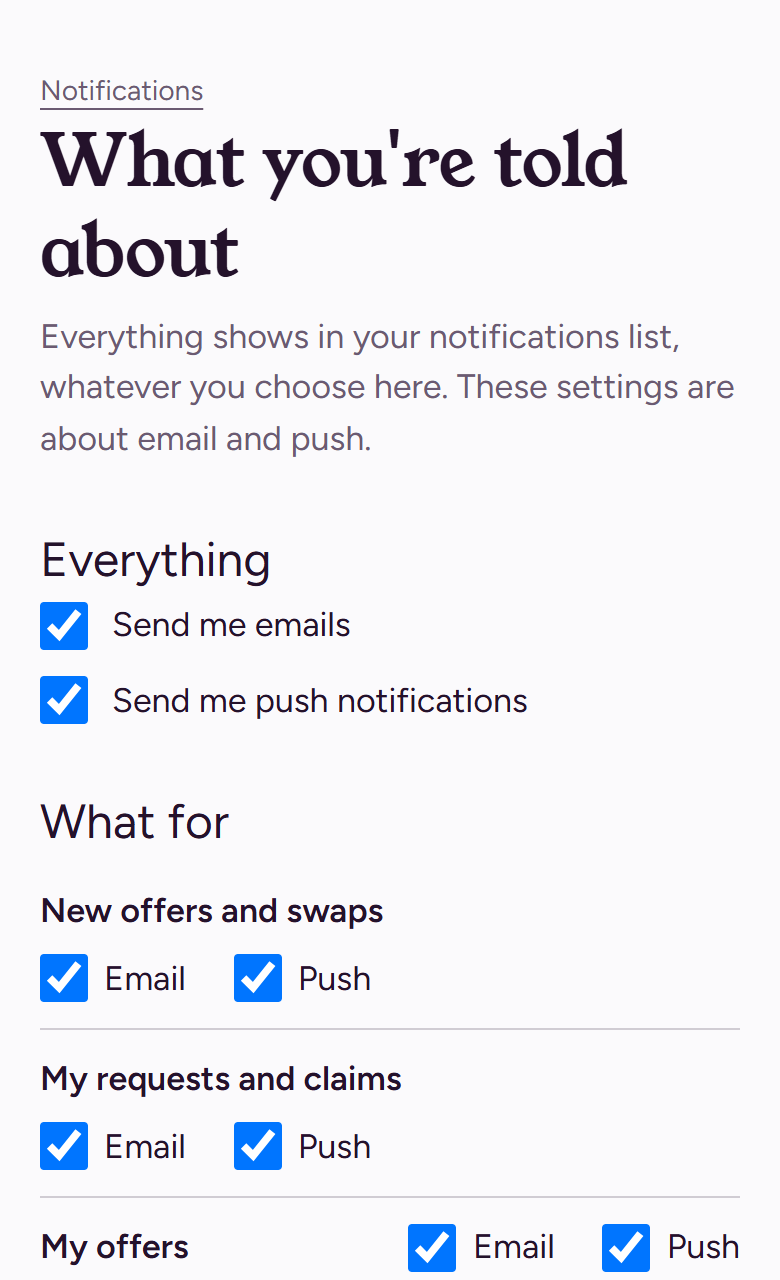
Everything that happens is listed under the bell at the top of your screen. You can also be told by email, and by a message on your phone.
- Choose which ones come by email or on your phone in What you're told about, from the bell. Everything still shows in your list, whatever you choose.
- You can have a short summary by email once a day, week or month, instead of lots of messages.
- You can switch off a community, or a person or wine you are not interested in, without missing anything that involves you.
- To get messages on your phone, turn them on when you are asked. On an iPhone, add Cellar Circle to your home screen first (see above).
Your cellar
Your cellar is the list of bottles you have collected or swapped for, and how many are left. It builds itself, and only you can see it.
- Open it from My cellar on your home screen.
- Only bottles you have actually collected are in it. If you collected some of your bottles and others are still waiting, the cellar shows what you have so far and adds the rest when you collect them.
- When you drink, give away or lose a bottle, say so, and the number left goes down.
- If you like, you can let friends in your communities see which wines you have, so they know who to ask. This is off until you choose it.
Use an AI agent
An AI agent, such as Claude or ChatGPT, can look things up and do small jobs in Cellar Circle for you, if you ask it to. You might say “what is open in my communities?” or “post six bottles of the 2019 Barolo I just ordered”. It is switched off until you connect one, and you stay in charge.
What an agent can and cannot do
- It can look. Your communities, the offers and swaps in them, and what you have open.
- If you let it manage, it can post and change your own offers and swap listings. It can post an offer, fix its details while nobody has been told yet, keep it open longer, or cancel it. For a swap listing it can list bottles, change the listing, or take it down. The price per bottle is worked out by Cellar Circle the same way the form does, never by the agent, and the agent is told to show you the price and the details and wait for your yes before it posts.
- It can ask for bottles for you, and deal with requests. It can ask for bottles from someone else's offer, change or withdraw your request, and, on your own offers, approve, reduce or decline a request, or approve everyone waiting. The bottles are held and the other person is told, exactly as if you had done it yourself. On an offer that has already been confirmed, a request is binding, so the agent must tell you and wait for your yes.
- It can propose swaps, and answer proposals on your listings. It can propose a swap on someone's listing, change or withdraw your proposal, and, on your own listing, accept or decline a proposal. It cannot say that bottles have changed hands: you and the other member do that in the app when you meet.
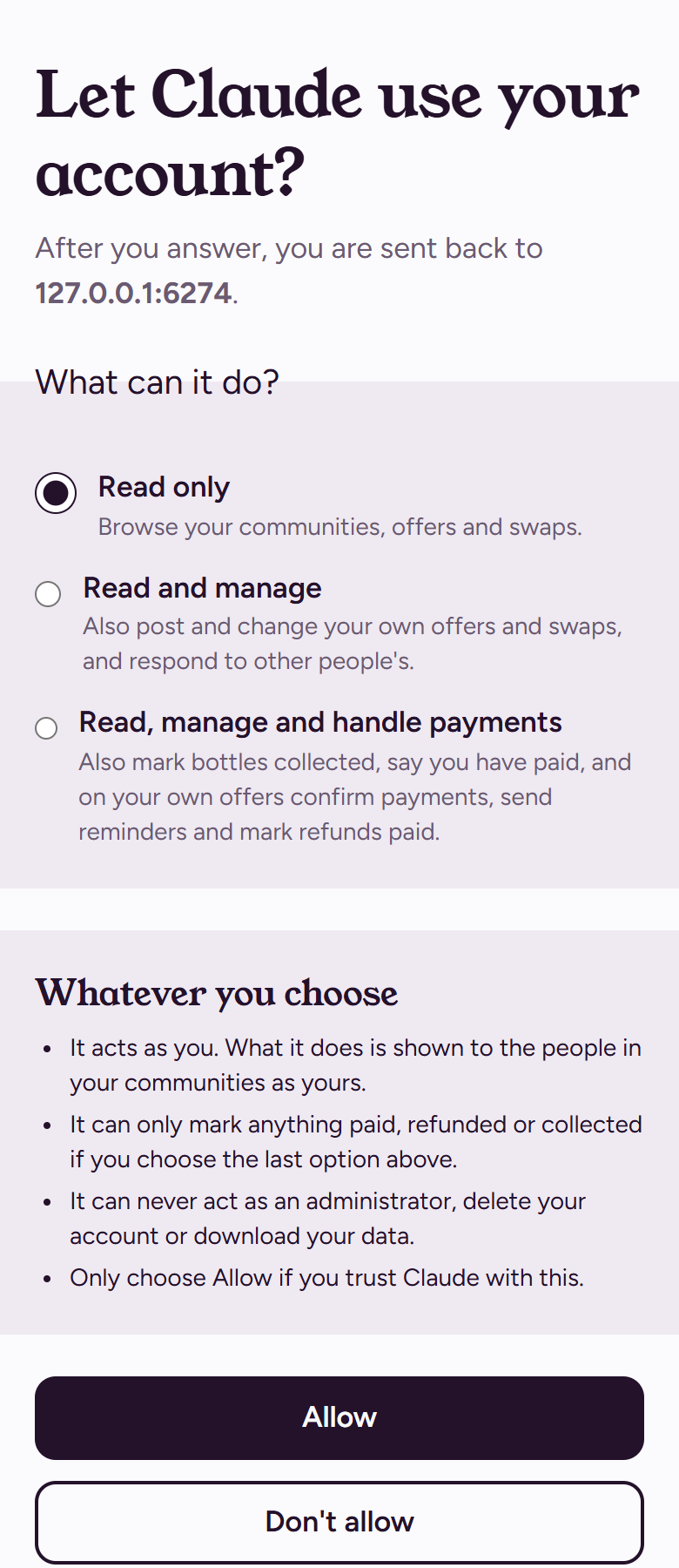
- Payments and collection are a separate choice. With Read and manage, an agent can never mark anything paid, refunded or collected. If you choose Read, manage and handle payments, it can say you have collected your bottles or paid, and on your own offers mark bottles collected, confirm payments, send a reminder and mark a refund paid. Cellar Circle still never moves money: people pay each other directly, and the agent only keeps the record.
- Some things always stay in the app. It cannot confirm an offer, settle balances, add photos, act as an administrator, remove anyone, download your data or delete your account.
- It acts as you. Other people in your community see what it does as yours, because you are responsible for it. In your own history it shows as done “via” the agent's name.
- Who sees what. Cellar Circle sends nothing to the company that makes your agent. But what the agent reads goes through the agent, so what that company does with it is between you and them. Check their privacy terms.
How to connect one
The address to give your agent
https://cellarcircle.app/api/mcp
- In your agent, open its settings and look for Connectors, Integrations or MCP servers, and choose to add a custom connector (it may be under a developer or advanced setting).
- Paste the address above and save it. For Claude and ChatGPT that is all it asks for. Leave any client ID or secret blank.
- The agent sends you to Cellar Circle to sign in. Sign in the way you usually do.
- Cellar Circle asks what the agent may do. Choose Read only or Read and manage, then Allow.
An agent you do not use for 90 days is disconnected, and you connect it again the same way.
Staying safe
- Read what the agent tells you before you agree. A good agent shows you what it is about to post and waits for a yes. If yours does not, say so.
- Start with Read only until you trust it. You can switch it to Read and manage, and later to handling payments, whenever you like.
- You can disconnect at any time. Open Your account and data and look under Connected agents. You can see what each one has done, switch what it may do, or disconnect it, and it stops at once.
- Photos stay in the app, and so does paying. Add the photo to an offer yourself. An agent never pays anyone: you pay the offerer directly, the way you agreed. Choose the payments level only for an agent you trust, since it can tell other people their payment is confirmed.
- It is limited. An agent can only make so many calls a minute, so a mistake cannot flood your community.
Some things to try
- “What wine is open for requests in my communities?” It lists them, with the price per bottle.
- “Is there a Hunter Valley Shiraz on offer?” It searches by wine, grape, region or producer.
- “What swaps are listed?” It lists what members would like to swap.
- “What do I need to do?” It lists what is waiting on you.
- “Post six bottles of the 2021 Rockford Shiraz. I paid $240 for twelve plus $12 shipping, and requests close on Friday.” It shows you the price and the details first, then posts when you agree.
- “Ask for two bottles of the Grenache.” It tells you the price per bottle and the total, and asks you to confirm before it asks the offerer.
- “Offer two of my Rieslings for the Heathcote Shiraz.” It shows you what you would give and get, and proposes it when you agree.
- “Who has asked for my Shiraz?” It lists the requests. Then “approve Ben's”, or “approve everyone waiting”, and each person is told.
- “I have collected my two bottles of the Shiraz.” Needs the payments choice. It records it and tells the offerer.
- “Ana has paid for her bottles. Confirm it.” Needs the payments choice. It asks you to check you really received it before it records it.
- “Keep my Shiraz offer open until next Tuesday.” It changes the closing date and the people who asked are told.
- “List three bottles of my 2018 Heathcote Shiraz to swap. I would like a Riesling.” It shows you the listing first, then posts it when you agree.
Leaving, and your data
Leaving a community
Open the community, choose Members, then Leave this community. You lose access straight away. If you have things in progress, such as an offer or money owed, you will be told who will be notified, and they stay on record under “Former member”. You can ask to join again later.
Your data
Open Your account and data from your home screen. There you can Download my data, a zip of everything we hold about you, or Delete my account. Deleting removes your details, and what you did stays only as “Former member”. Our privacy policy has the full detail.
Getting help
- Ask your community's administrator. They are the people who invited you, and they can help with anything about your group.
- Send feedback. There is a Send feedback link at the bottom of every page once you are signed in. Tell us what is confusing or broken.
- See the tour again. A short walk-through of the main ideas is in Your account and data, under Take the tour again.
See also the terms of use.